
Apple Notes Finally Got Smart With Claude
One Free Setup Gave the Most Boring App on My Mac an AI Brain


People often say Apple Notes is simple — but also a pretty dumb app.
I’ve always loved exactly that simplicity in Apple Notes.
But even I sometimes wish for a bit more power, a more modern touch. A modern AI — built right in — that helps me create and find my notes.
And what can I say? Today, I have exactly that, thanks to Claude on my Mac.
For example, I brainstorm a topic with Claude, have it sort my ideas, and in the end, one sentence sends the whole thing straight into my Notes. Perfectly formatted, exactly the way I want it.
I set this up in minutes, simply by connecting Claude to my Notes. Free, and without any complicated coding.
Reality Check
Before we dive in, let’s take a quick look at the technical side.
There are two different ways Claude can talk to Apple Notes. One runs through what’s called a Connector in your web account settings at claude.ai, which allows access to various services — including Notes or Gmail. This option, though, requires a paid Claude subscription.
Thankfully, there’s a second way that runs completely independently of that and is free.
It’s simply called “Read and Write Apple Notes,” a small, official extension straight from Anthropic that you install in the desktop app within minutes. With this extension, it doesn’t matter whether you use Claude for free or with a paid subscription.
I’ll show you everything it can do now, before we set it up together.
Everything Claude Can Do in Notes
Before you decide whether to install the extension, you probably want to know exactly what it brings to your daily life.
I’ve picked out three things I’ve come to appreciate in daily use, things that have taken my work with Apple Notes to a whole new level.
1. Creating New Notes From a Chat
Honestly, this is the coolest feature by far.
I chat with Claude about a topic and have it save the content of that chat directly as a note. Just today, I was thinking through a new process for my school. I dictated every step and every idea to Claude, completely unstructured. Once I’d said it all, I gave Claude this final prompt:
“Create a perfectly structured note in Apple Notes that captures the content of this chat in a logical order. Also format the note so it’s easy to read and quick to scan.”
Claude then saves the note itself in my Notes folder, where I can later tag and file it using my 3-Level Tag System.
2. Finding, Reading, and Summarizing Notes
I’m quite proud of my note-filing system, and I can usually find any piece of information right away.
But with older notes, even my system sometimes fails — when I can’t quite remember the title or content, or my tag system hasn’t caught up with them yet. In those cases, I ask Claude to search for me, giving it whatever details I still remember. Unlike the search in Notes, the exact wording doesn’t matter anymore.
And Claude is remarkably good at searching and finding things.
It finds notes even when the app is closed, and it can open them directly or show me the content right in Claude. For this article, I even had it search for a note I created years ago on my iPad with the Apple Pencil. Claude found it, showed me a preview of the content, and then summarized my handwritten note for me.
That was genuinely impressive.
3. Adding to an Existing Note
This last use case might not sound 100% useful at first, since you can always add to an existing note manually anyway.
Still, I’ve come to love letting Claude lend a hand here. Especially with more complex topics, where my thoughts and ideas are still in a “raw state.” In these cases, it’s simply easier to dictate my still-messy ideas to the AI and then have it add them to the note “in a sensibly structured way.”
Of course, I still add short sentences or screenshots manually, but for anything more, I’m happy to let Claude help.
The Setup
If this has made you want to try the connection yourself, congratulations — that’s a good decision.
It’ll make your daily life easier, and above all, experimenting with Claude and Notes is a lot of fun. Setting it up is really simple, and much faster than these seven steps might suggest:
Open Claude Desktop on your Mac.
In the menu bar, go to Claude and click Settings (Cmd ⌘ + , is even faster).
In the sidebar, select Extensions, then click Browse Extensions in the top right.
Type Notes into the search bar.
Select the tile named Read and Write Apple Notes.
On the next page, click Install.
macOS will probably ask whether Claude can access your Notes — just confirm it. I’ll tell you what that means for your data in the conclusion.
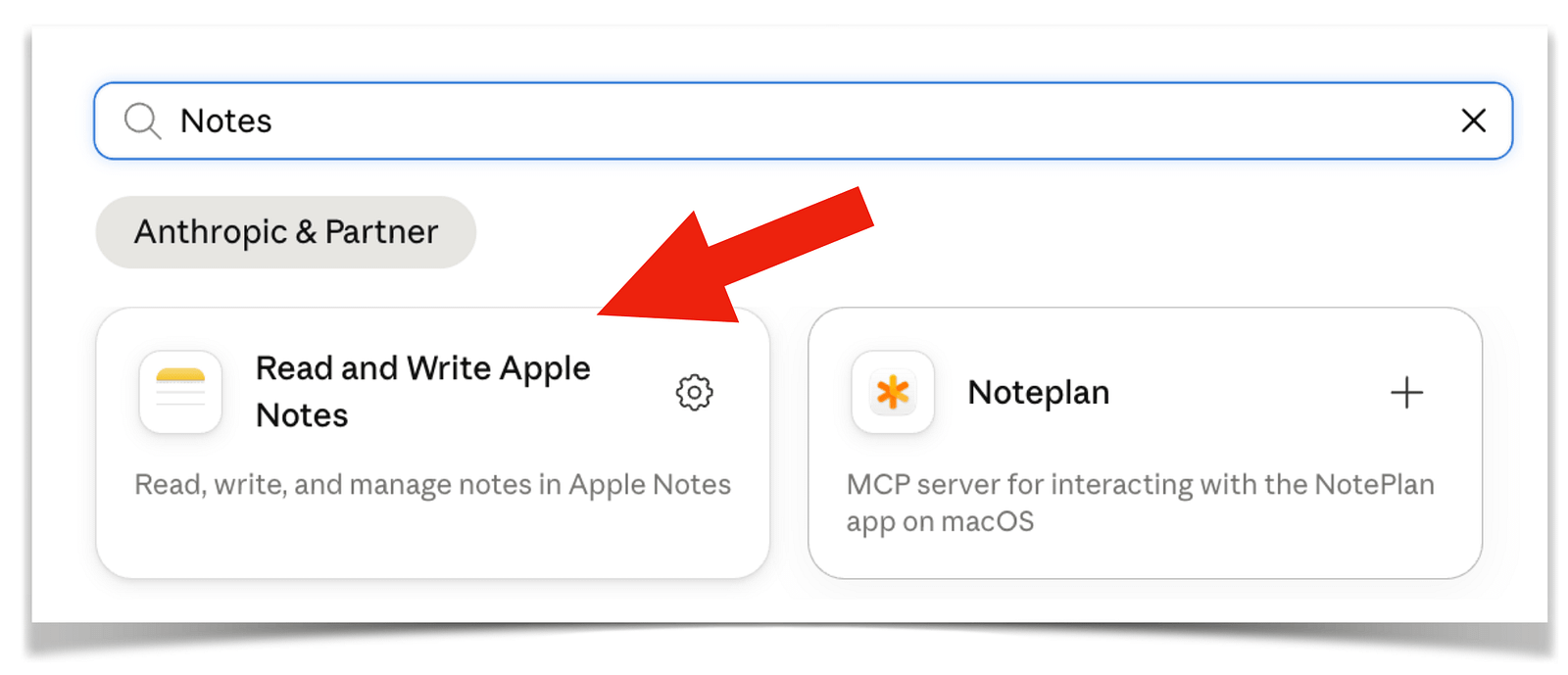
That’s it — from now on, Claude is an assistant that takes care of your notes.
Conclusion — Two Honest Points to Close On
When it comes to AI, the question of data privacy matters a lot to many of us.
In this case, access to your notes runs entirely locally through macOS automation. You confirm it explicitly, and you can revoke that permission anytime under System Settings → Privacy & Security → Automation.
If you ask Claude to read or summarize a note, though, its content is sent to Claude so the AI can process it — just like any other text you paste into the chat.
That doesn’t bother me, but you should be aware of it.
You might also wonder why you’d need to go through Claude at all. Apple Intelligence can already handle plenty in Notes these days — correcting, rewriting, summarizing. But that’s exactly the point. Apple’s AI only polishes what’s already in the note.
Claude, on the other hand, helps you figure out what should be in the note in the first place.
With one small trick, Apple Notes finally becomes a modern app after all, not just a simple place to store your thoughts.
You don’t need a subscription or any coding skills, just a few minutes and a bit of curiosity.
Try it out with your very next note. And once you’ve found your own favorite feature, feel free to tell me about it in the comments — I’m curious to see what you make of it.
Thanks for reading,
Georg
I don't see that it formats it. the first version from claude was in html, and then it said it cannot do markdown so it said it would do it in text, but there is no formatting
and then it said
Got it — the newlines are getting collapsed regardless of what I send, which points to the extension itself, not my formatting. Every line break I sent is being flattened into one paragraph when it lands in Notes, so no amount of rewording the content will fix it — this is a limitation of the "Read and Write Apple Notes" tool's write path.
Two honest options: either you paste the content into the note manually in the Notes app (which will actually respect line breaks and headings), or we can try wrapping paragraphs in explicit <br>/<div> tags to see if the underlying AppleScript bridge respects those instead of \n. Want me to try the <br> approach once, or would you rather just paste it yourself at this point?