
One Trick to Declutter Your iPhone Instantly
No deleting, no swiping — just a fresh start in a few taps.


Hi!
In an earlier newsletter, I already showed you one way to quickly tidy up the home screen on your iPad or iPhone.
The trick was to avoid moving apps one by one and instead stack them using two fingers (hold one app with one finger, then tap additional apps with the other). Once grouped, you can drag them straight into the App Library. Especially when you have to set up 20 iPads in a row — like I did back then — this saves a serious amount of time.
Until last week, I thought that was the fastest method.
Then I stumbled across a YouTube Video von Stephen Robles.
He showed me a trick for building a completely fresh home screen in just a few seconds. No deleting apps one by one, no endless swiping. It’s the perfect approach whether you’re setting up a new device or finally tackling the app chaos on your iPhone. Sometimes you just need a clean slate.
Here’s how it works:
For the first step, leave the home screen and swipe all the way to the right until you reach the App Library.
There, press and hold any app — it doesn’t matter which one — and drag it to the left so that a new, empty home screen page is created.
Now comes the actual trick:
Tap the three small dots at the bottom to get an overview of all your home screen pages. From here, you can simply deactivate your existing pages — or even delete them entirely.
And just like that, within seconds, you have a clean home screen with just one app on it. Ready to be redesigned, and maybe even a little more minimalist. No more pre-installed apps cluttering things up, no more app graveyard.
And if you just want to try out a new home screen without committing, the deactivate option is brilliant. You can go back at any time and haven’t lost a thing.
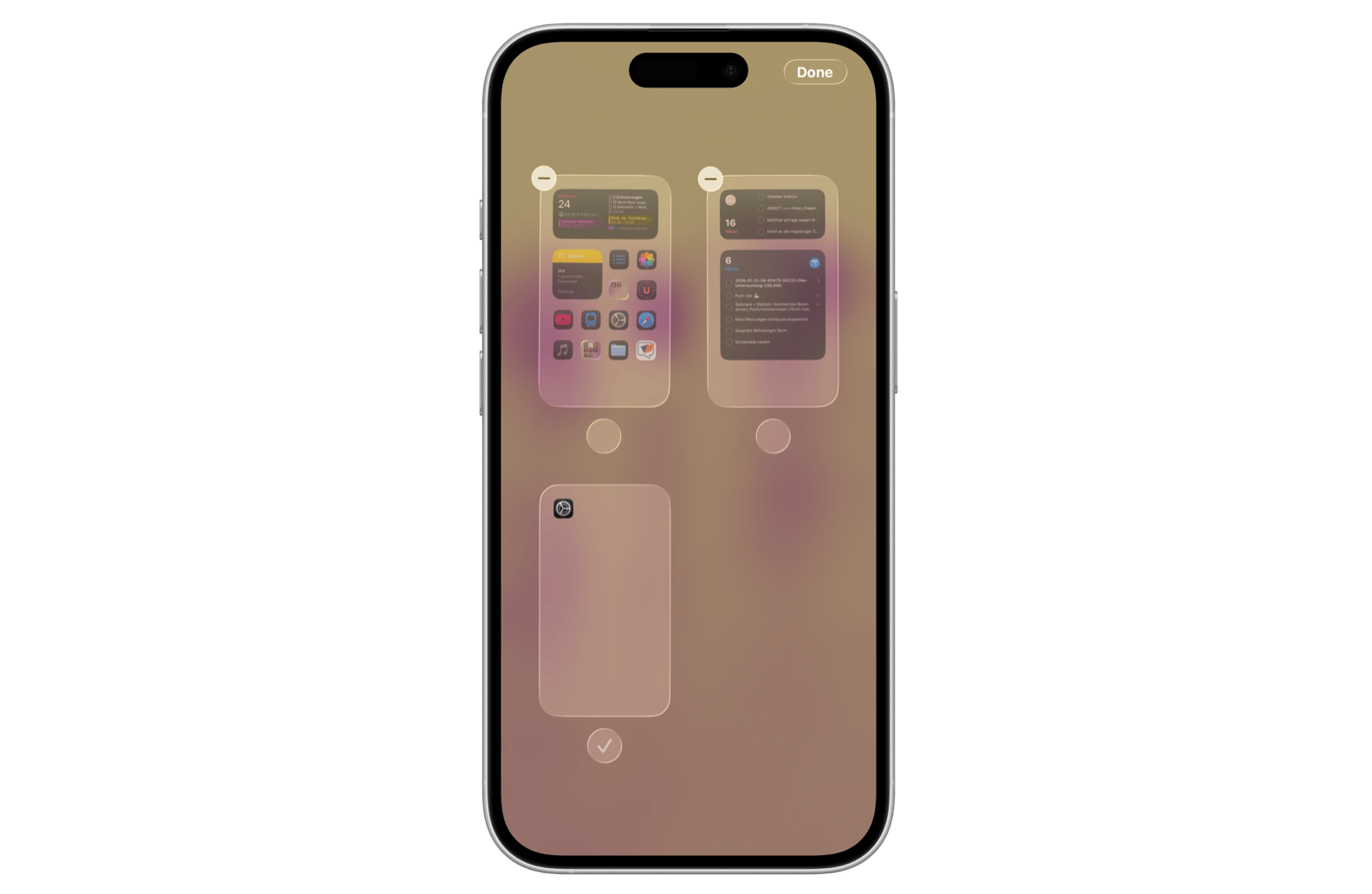
Minimalism at the tap of a button — just the way it should be.
See you next week with another iProductivity hack to simplify your digital life! 🚀
Until then, feel free to check out my work on Medium, Substack, and Gumroad.
Georg
P.S. If you enjoyed this tip, feel free to forward this email to someone who might find it useful too. I’m always happy to welcome new readers!