
Spring Cleaning My Mac - These Are the Ones That Stayed
After Clearing Out the Clutter, These Quiet Tools Proved Their Value Every Single Day.


Do you love installing new apps on your Mac as much as I do?
For me, it has always felt a little like magic. Two clicks, and suddenly your Mac can do things it couldn’t before.
The menu bar gains new abilities, apps open in new ways, and screenshots turn out better than ever.
But often, the initial excitement fades fast — at least for me.
After a short while, most apps fade into the background. Not because they’re bad, but because the real benefit for my daily work turns out to be smaller than expected. They just sit there, unused in my Applications folder, and little by little my Mac fills up with things I don’t actually need.
That’s why I do a proper spring clean every now and then.
Unused apps get deleted, storage space gets freed up, and the hard drive gets a thorough wipe.
But no matter how often I clean up my Mac, some apps always stay — and have been staying for years. They’re too useful to delete, too good to give up.
Those are the apps I want to talk about today.
Less Is Often More — But Not Always
The plan sounds simple enough: as few apps as possible.
It’s actually a popular idea in productivity circles, the best setup is the leanest setup. Clean up the Mac, stay minimal, and ideally stick to Apple’s own apps. But unfortunately, it’s not that simple.
A Mac without any third-party tools isn’t a better Mac — it’s often just a more cumbersome one.
There are things macOS simply can’t do out of the box. Or at least not the way you’d want it to. And for exactly those gaps, there are many small apps that truly earn their place.
So the question isn’t: how few apps can I get away with?
The question is: which apps are actually worth it? It’s a balancing act, and the right balance looks a little different for everyone.
Before I show you my answer, let me give you a quick orientation.
Apple’s own apps are never up for discussion during my spring clean. Notes, Reminders, Calendar — those stay, always. The same goes for AI tools like ChatGPT or Claude. Which ones matter most and offer the biggest individual value would go well beyond the scope of this article. That’s a topic for another day.
Today is exclusively about the unassuming helpers.
The small apps you install, almost forget about, and only miss when they’re gone. That’s when you suddenly realize how used to them you’d become, and how many small frictions they had quietly removed.
One more thing worth mentioning: all the apps shown here are free. I’d gladly pay for many of their features, but for what I need, the free versions have always been enough.
Every App Needs a Clear Job
Which tools actually make sense is deeply personal.
My selection is shaped by what I do every day: writing texts, taking screenshots, working with Word and Pages files, communicating. As a teacher and writer, that’s my daily work. Naturally, that’s reflected in the apps I use. But don’t worry, a few of them are so universal that they’re relevant for pretty much any Mac user, regardless of what you do for a living.
And all links are unpaid, I have no affiliation with any of the developers. I just genuinely use these apps every day.
Let’s start with two apps that help me with writing and communication.
Pure Paste & Rocket — Write Faster, Communicate Better
Pure Paste
This app does exactly one thing — and it does it perfectly.
When you copy text and paste it somewhere, the original formatting usually comes along for the ride. Bold text from a website, a different font size from a PDF, strange line spacing from an email. Pure Paste removes all of that automatically.
Clean text, every time.
The Mac does have a built-in shortcut for this, but who wants to memorize ⌥+⇧+⌘+V? Pure Paste is simply much more convenient, it handles everything without me having to think about it. On top of that, the app also removes things I can’t even see, like tracking parameters in links and invisible formatting remnants.
Honestly, I don’t fully understand what all of that is, but it’s a good feeling knowing it’s gone.
Rocket
On the other hand, this is essentially an emoji tool. 🚀
It lets you insert emojis into any text using simple keywords. That might not sound like the most impressive tool in the world, but emojis aren’t just cute little pictures in my workflow. They’re a real part of how I communicate — in messages, in friendly emails, even in assignments for my students. A well-placed emoji can sometimes replace an entire sentence.
With Rocket, I type a colon, then a word, and the right emoji appears instantly.
The best part: I don’t need to know the official emoji names. I can assign my own word to any emoji, the one that comes to mind naturally. The image appears in a fraction of a second. Rocket can also store entire text snippets and insert them with a shortcut.
And it works everywhere, not just occasionally, the way Apple’s text replacement sometimes does.
Windows & Overview — Rectangle & AltTab
I covered the topic of window management in more detail in a recent article:
18 Years on a MacBook: 3 Principles I Use Every Single Day.
The short version: I almost always work with two windows side by side. Mail or Calendar on one side, Notes, Reminders, or my writing app Ulysses on the other. And they need to land exactly where I want them, on command. Apple’s built-in solution via the green button in the top-left corner is a nice idea, but in practice it doesn’t really work for me.
Instead, I’ve been using a different app for years.
Rectangle
The app has been around longer than Apple’s own window management feature.
And I’ve grown so fond of it that I have no intention of removing it. With ⌘ + arrow key, I position any window in a fraction of a second — exactly where it needs to be. Reliable, fast, and without any mental effort.
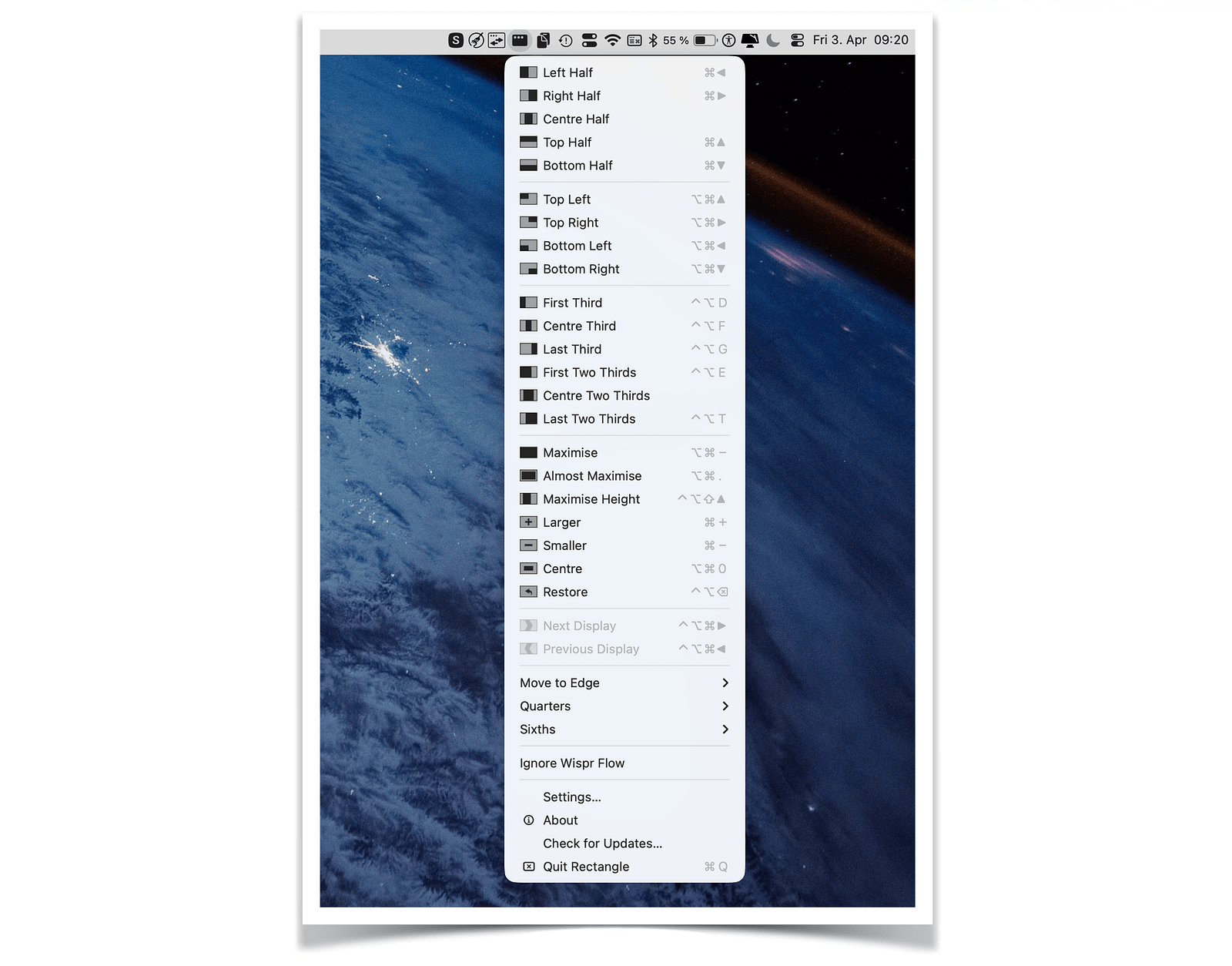
Rectangle helps me position windows cleanly. But for switching between them, I rely on a different tool.
The Mac does have ⌘ + Tab for switching between apps, but it only shows app icons, not individual windows. When you have many programs and documents open at once, it’s easy to lose track immediately.

AltTab
AltTab solves exactly this problem, and the name is no coincidence.
The app brings the window management that Windows users have known for years to the Mac. A custom shortcut opens an overview of all open windows, complete with preview images, not just icons. You see at a glance what’s open and where, and switch directly with a single keystroke.

Once you’ve used AltTab, you won’t understand how you ever got along without it.
With Rectangle and AltTab, I tell my Mac exactly what to do with open windows, as quickly and directly as possible. That’s a foundation I rely on every single day.
But I also rely on a small app for system settings, one that gives my Mac an extra control center.
Small System Helpers — Only Switch
Only Switch is exactly the kind of app I discover somewhere and immediately have to try.
But this time, it was clear from day one that this app had earned a permanent place on my Mac. It brings the most important system settings directly into the menu bar — and even adds features that Apple doesn’t offer at all. In the menu bar, Only Switch looks similar to the Control Center icon (two small toggles stacked), and a single click opens a fully customizable interface.
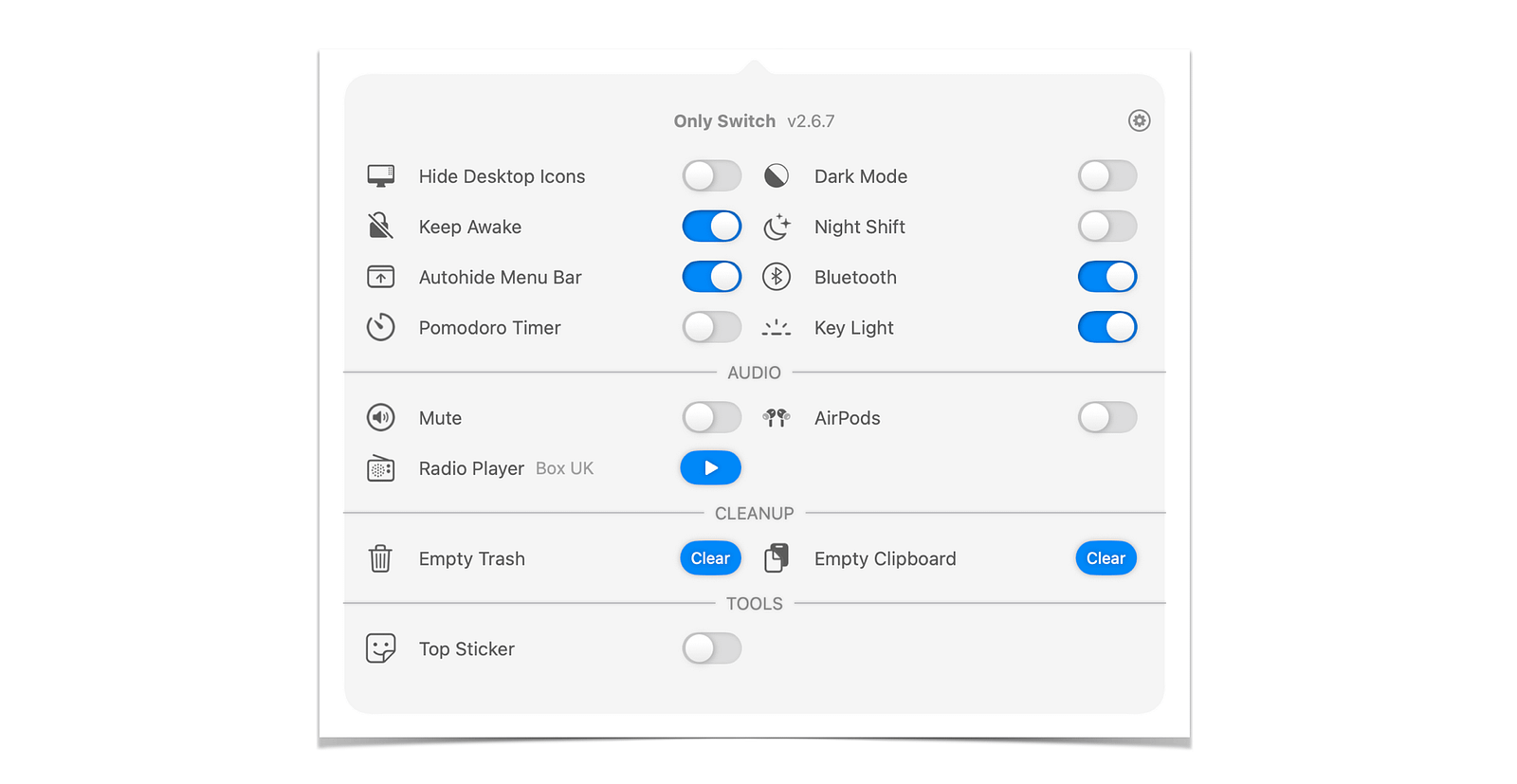
The selection of available commands is vast, but you can choose exactly the ones you actually need.
Here are two I use most often:
Keep Awake prevents the Mac from going to sleep or dimming the screen. I use this whenever a longer process needs to run uninterrupted, or when I need the display to stay active. For example, in class when connected to the interactive whiteboard.
Hide Desktop Icons is almost even more valuable to me. A clean desktop is worth its weight in gold for screenshots, and when sharing my screen in meetings, I don’t have to worry about what files are visible on my desktop.
Setting up Only Switch is honestly a lot of fun. It feels like you’re programming new features for your Mac — even if, like me, you normally don’t have those skills at all.
The last apps I want to show you connect to something I mentioned earlier: taking screenshots.
Perfect Screenshots — Shottr & Xnip
Many people swear by Apple’s built-in solution with ⇧+⌘+4, or by paid apps like CleanShot X.
I take screenshots constantly, mainly for my articles and teaching materials. Over the years, I’ve settled on two free apps that complement each other perfectly.
Xnip
This app covers two specific situations for me.
First, when pixel-perfect precision matters. Screenshots come with a crosshair selection that works like a magnifying glass, letting me select any area of the screen with a level of accuracy that Apple’s built-in tool simply can’t match.
Second, when I want to capture a specific app window. Xnip automatically detects open windows — I hover over them and choose exactly which ones I need. The result is always a clean, perfectly framed screenshot.
Whenever precision is what matters, Xnip is the tool I reach for.
Shottr
This is my everyday screenshot tool, especially when I want to annotate or edit a screenshot right away. Shottr also has a great drag-and-drop feature, I’ve dragged countless screenshots directly into upload windows with it.
An absolute highlight is the text recognition shortcut. With ⇧+⌘+T, Shottr recognizes text in any selected area and copies it directly to the clipboard, without any formatting. For grabbing text from images, PDFs, or even QR codes, it’s unbeatable.
Both apps have their own shortcuts on my Mac — ⇧+⌘+1 for Xnip, ⇧+⌘+2 for Shottr — modeled after Apple’s own shortcut logic.
What I Consciously Removed
During my spring clean, I came across quite a few apps where deleting them wasn’t easy.
But when I thought about it honestly, they fell into one of two categories. Either they did something similar to an app I already had. Or they were “quite nice” but didn’t offer any real added value. Alternative video players, for example, or apps that simulated a notch on my Mac.
Cool? Sure. Something I’ll miss? Not really.
Cutting back to the essentials doesn’t just create technical benefits — more storage, better performance — it also brings a kind of mental clarity. Fewer apps means fewer decisions. I don’t have to think about which program to use for which task.
Of course, every Mac is different, and so is every cleanup. But if reading this has made you want to declutter yours, here’s one last app to help you do it properly.
One that’s been with me for many years. It’s essentially the best cleaning cloth your Mac can have:
AppCleaner
The name says it all.
This small app helps you remove programs from your Mac completely and without leaving a trace. Simply drag an app into the AppCleaner window or find it via search, and all leftover files and data debris get removed along with it.
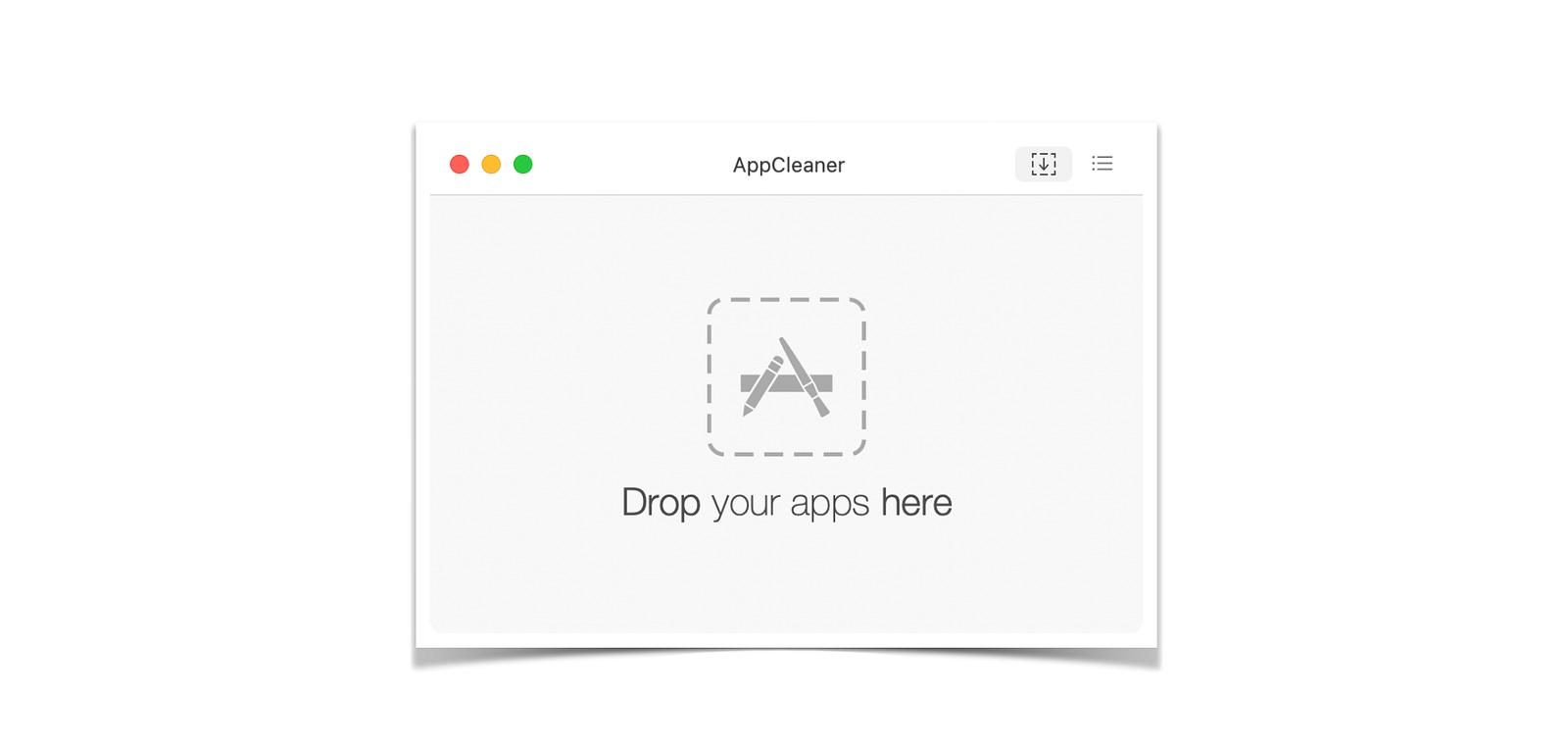
I’ve been using this app on every MacBook I’ve owned. There’s really no reason not to.
Thanks for reading,
Georg
P.S. If you were to clean up your Mac today, which apps would make the cut?