
This 60-Second iPhone Setup Blocks Every Distracting App
Do Not Disturb, upgraded into a real productivity tool.

Hi!
Are you someone who loves Do Not Disturb mode on your iPhone too?
I definitely am. One tap, and the whole world is locked out. No more distractions.
But I get it if that feels too radical for you. The worry about missing something important runs deep.
That’s why I’m showing you a trick today that does both. Full focus, without locking out the people who matter to you. And on top of that, I’ll show you how to turn Do Not Disturb into the perfect productivity mode. Legal doping for your focus, basically.
And if you don’t feel like building this yourself, you can just download the whole thing at the end.
Step 1: Your loved ones stay reachable
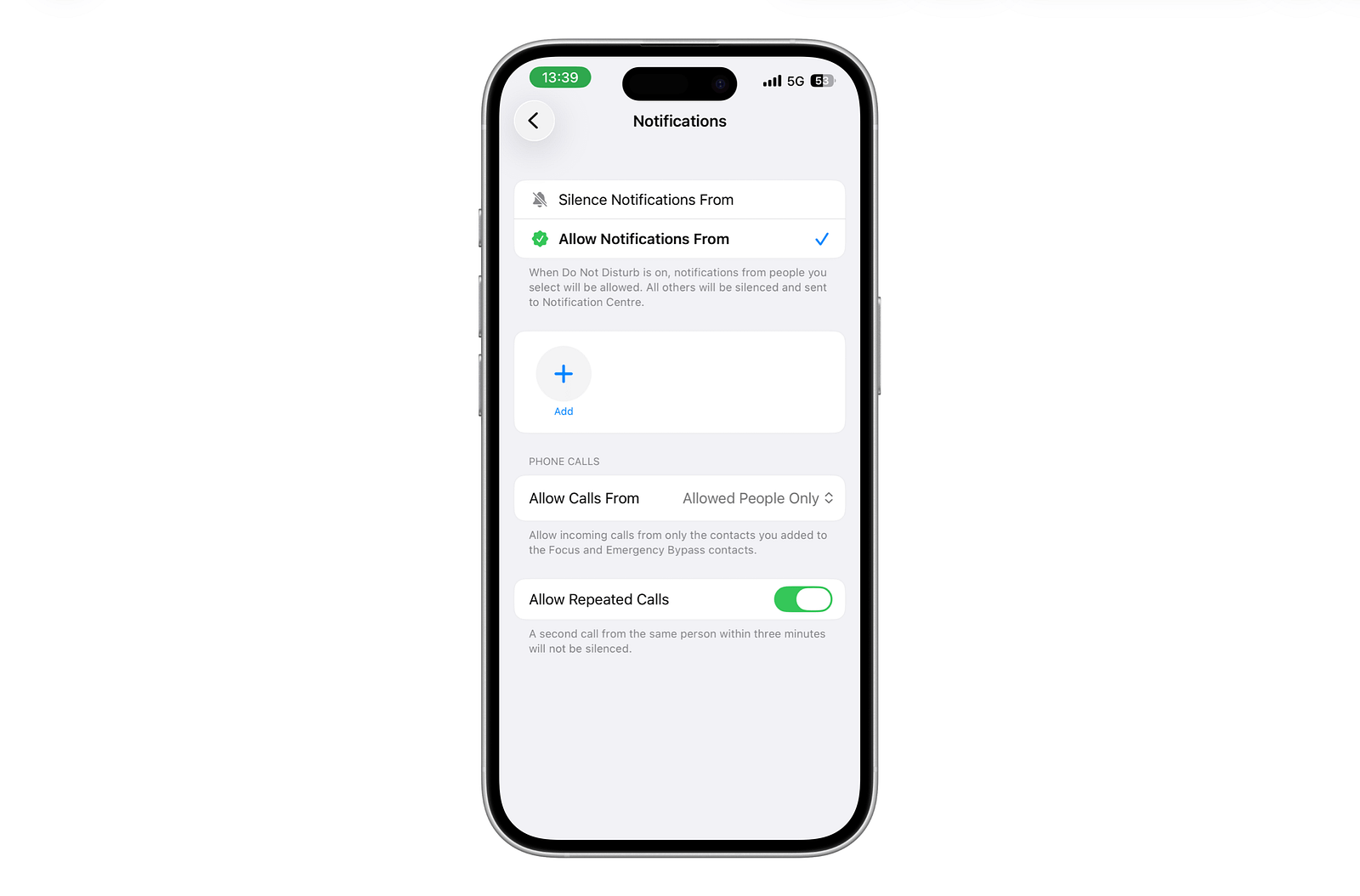
Open your Do Not Disturb settings by simply typing “Focus” into your iPhone search.
Under “People,” you can decide who’s allowed to reach you anyway. Your family, your partner, whoever matters most. Calls and messages from these contacts will still show up normally.
Step 2: The actual trick
Now comes the part that turns Do Not Disturb into a real productivity boost.
Imagine turning on Do Not Disturb, and your worst distractions — Instagram, Facebook, and the rest — simply won’t open anymore. You won’t need self-discipline, your iPhone does the work for you. I use this every day on my biggest weakness: YouTube.
And don’t worry, nothing gets deleted.
As soon as you open a specific app, your iPhone just checks whether Do Not Disturb is active. If it is, it sends you straight back to the Home Screen.
Here’s how
If you’d like to build this automation yourself, here’s the quick guide:
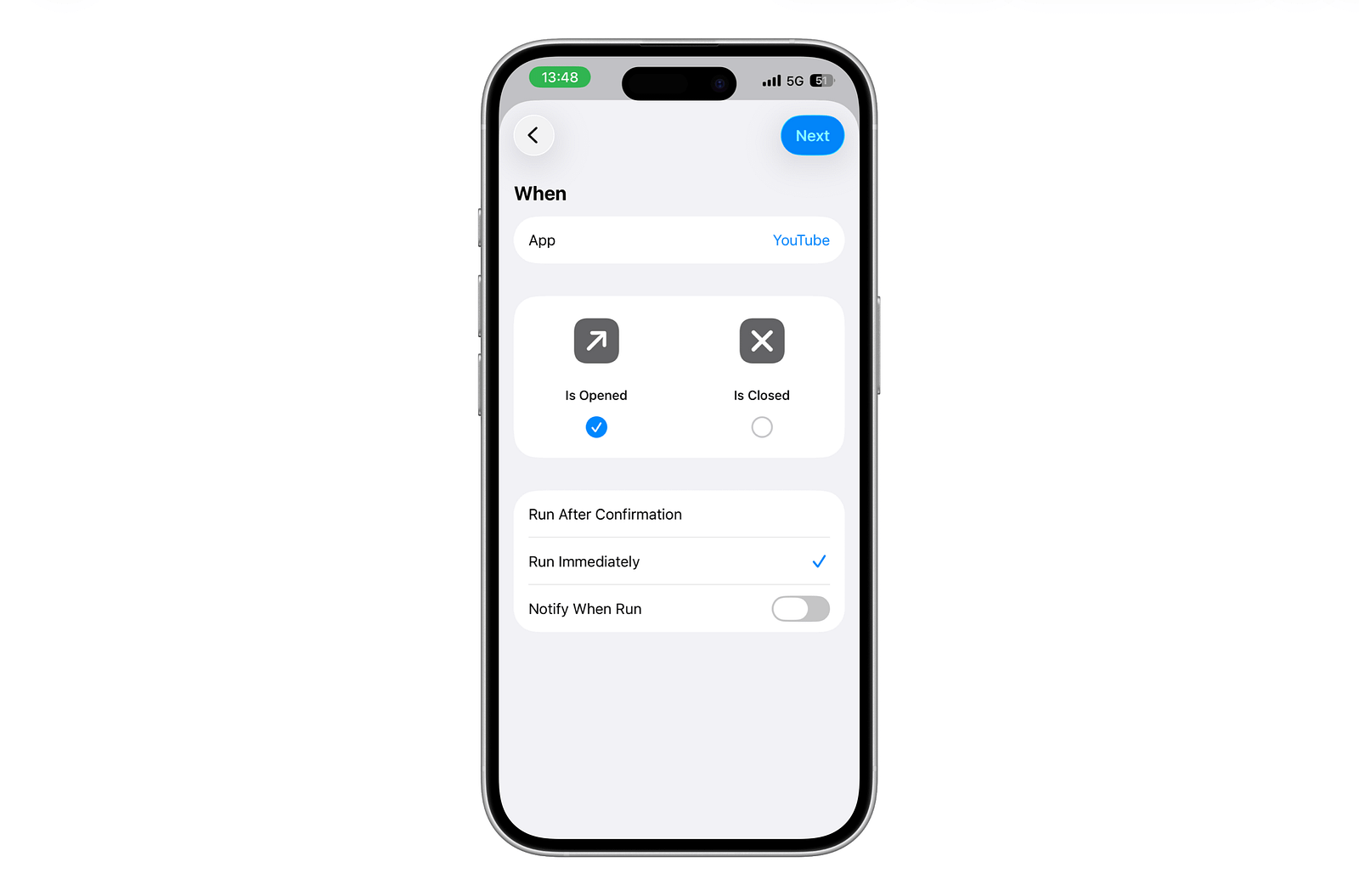
Open the Shortcuts app, go to Automation, and tap the plus sign in the top right.
Select App, then Choose, and search for the app you want to block. You can add more than one app.
Turn on Is Opened, enable Run Immediately, and turn off Notify When Run. Then tap Next.
Select Create New Shortcut and search for Get Current Focus.
Find the If condition, tap Icon, and switch the checkmark from Icon to Name. Then enter Do Not Disturb instead of anything.
Delete the Otherwise branch — you won’t need it.
Search for Go to Home Screen and drag it in front of the End If tile.
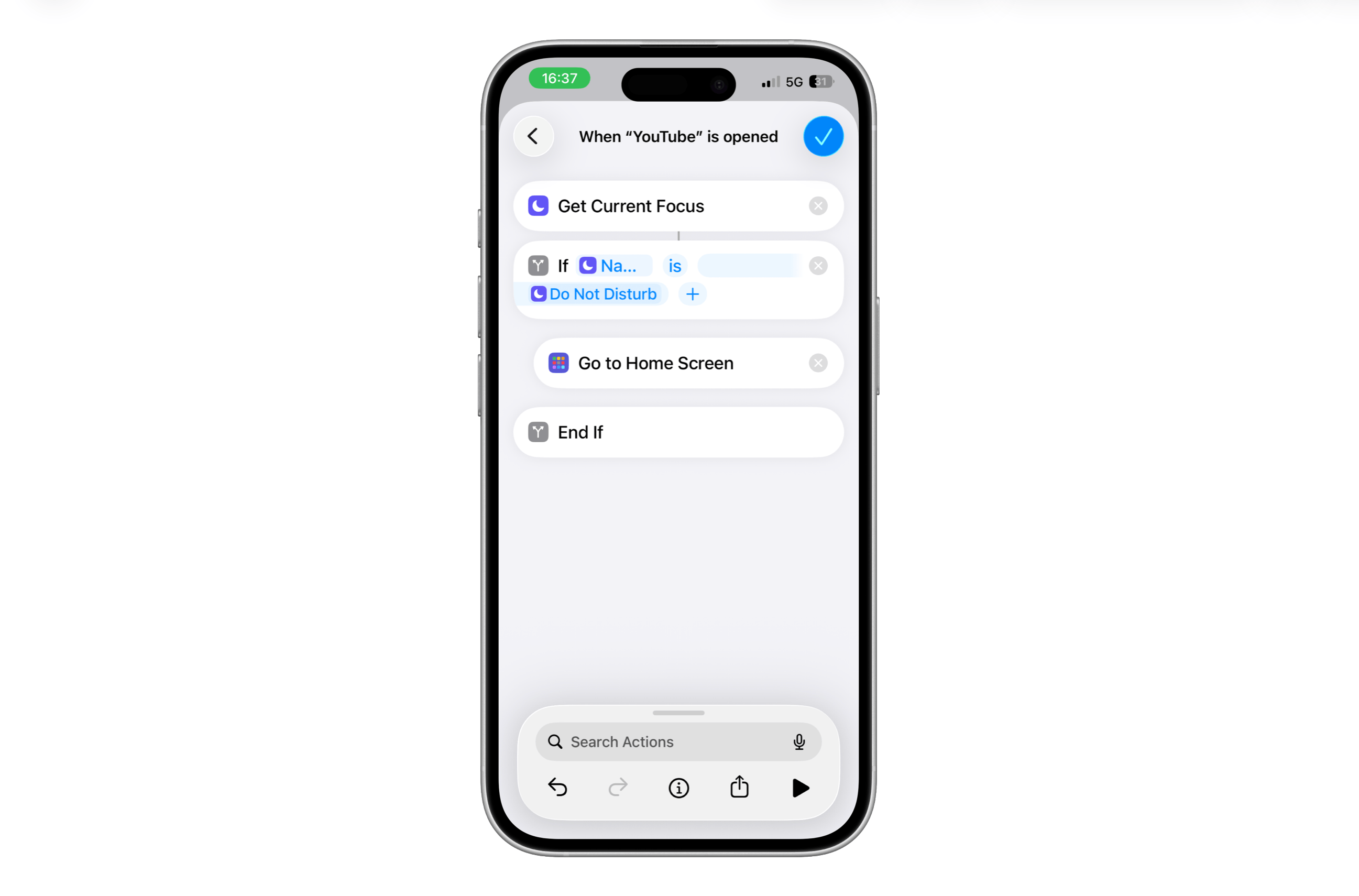
From now on, your iPhone automatically sends you back to the Home Screen whenever you try to open your chosen app while Do Not Disturb is active.
The link for anyone who doesn’t feel like building it
No time or no interest in setting this up yourself? No problem — here’s the ready-made Shortcut to download. Just follow the first three steps of my guide above, then select my Shortcut instead of Create New Shortcut.
In return, the algorithm and I would love a nice comment and a few likes. 😅
See you next week, another small tip is already waiting for you.
Until then, feel free to check out my work on Medium, Substack, and Gumroad.
Georg