

A few weeks ago, I received an email from a reader that grabbed my attention immediately.
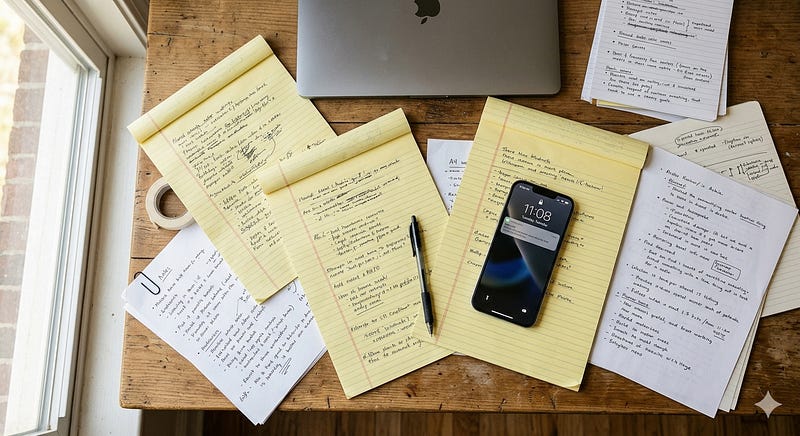
She told me she had a whole collection of notes — long lists of tasks, random ideas, and bigger projects. Some handwritten, some typed. She even sent me photos of her notes: clear bullet points, everything carefully captured. But no real connection between the analog and the digital.
Maybe you have a similar pile on your desk.
She was looking for a system to bring all her thoughts together in one digital place. Something simple, something efficient. She had already given it some thought:
Siri as a helper
Scans in Apple Notes
Freeform as the missing link between her notes
All solid ideas — but the bigger picture was still missing.
I gave her a clear roadmap for turning her scattered thoughts into a network of notes that’s always there when she needs it.
The Real Problem
Anyone who loves working both analog and digital — which I do — is always at risk of the chaos taking over.
Many lists and scraps of paper, no clear system. Looking for the one perfect app or template is often the logical first move. Or waiting for the one method that solves everything at once.
That’s understandable, but it’s the wrong starting point.
The real problem is almost always somewhere else. There’s no clear distinction between actionable tasks, ideas, and project topics. Everything lands on the same piece of paper, in the same digital note, without thinking upfront about what’s actually being written down.
And without that distinction, there’s no common thread, no matter which tool you use.
Time for a Reset
That’s why the first step has to be a step back — and I mean that literally.
Set aside some time, maybe pour yourself a glass of wine, and spread out all your notes, Post-its, and loose pages in front of you. Or open all your digital documents. Then take a step back and go through everything from a kind of bird’s-eye view.
Not to get things done. Just to sort, or maybe even to delete and let go.
Step 1 — Clear Tasks Go Straight Into Your Task Manager
When you come across a concrete, actionable task during your review, it’s definitely in the wrong place.
Tasks don’t belong among your notes, they belong in a task manager. For me, that’s Apple Reminders, but use whatever app works best for you. Even a handwritten to-do list is perfectly fine. The important thing is to clearly separate your tasks from the rest of your thoughts.
I’m always a strong advocate for the digital option, it simply offers too many advantages to ignore.
Paper rarely reminds you of anything, which is where Reminders on your iPhone has a clear edge. And you can make it even easier by just reading your tasks out loud and letting Siri do the typing:
“Hey Siri, remind me to call my accountant today at 5 p.m.”
One more thing at this stage: don’t worry about which categories or lists to put your to-dos into.
A well-written task doesn’t need a category, it just gets done.
Right now, the only goal is to get the task out of the paper chaos. Cross it off on your sheet afterward, or mark it as captured digitally. It feels good, and it helps you keep track of what’s already been collected.
Step 2 — Everything Else Goes Into Notes
What’s left after that first pass is usually thoughts and spontaneous ideas.
Things that aren’t concrete enough to be a task yet, but still worth keeping. These are perfect for an app like Apple Notes. Anything that’s already digital can easily be copied and pasted into one large note or into a folder — something like an “Inbox.”
The handwritten parts of your notes will need to be digitized first, but there are some good ways to handle that:
Scanning in Apple Notes
I regularly digitize my handwritten notes using my iPhone in Apple Notes.
This works best when a single page covers one topic. When that’s the case, digitizing is straightforward. I walk through how I do this in my daily workflow in this article.
Live Text
Your iPhone doesn’t just recognize typed text, it also reads handwriting.
If your handwriting is reasonably clear, open your camera and hold it over the text you want to capture. You don’t even need to take a photo: the yellow-cornered rectangle that appears tells you in real time when text has been recognized. Then tap the small text icon in the bottom right and select the recognized text just like you would with typed text:
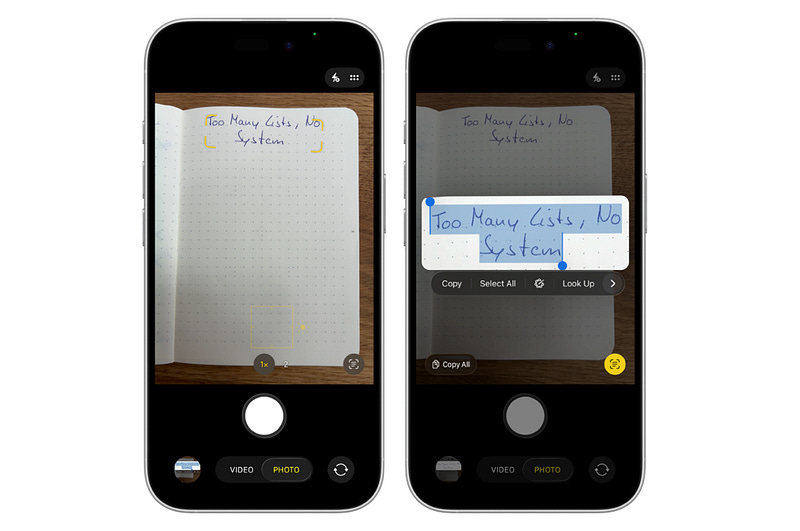
From there, you can copy it and paste it into any note. It’s especially useful for pulling together related lines scattered across a page with mixed topics.
ChatGPT
Honestly, this is the method I prefer most.
Take a photo of your notes, upload it to ChatGPT (or whichever AI you like), and ask it to transcribe the text. Depending on your handwriting, the result won’t always be perfect, but it’s often much faster to correct ChatGPT’s mistakes than to type everything from scratch.
We have this technology now. Might as well use it.
Step 3 — Clean Up
Once everything is digitized and gathered in one place, there’s one final step: go through all your notes one more time.
Ask yourself:
Are there duplicates? Merge them and delete what’s redundant.
Is there anything that’s no longer relevant? Delete that too.
This last step alone typically creates the most clarity. Suddenly, you see connections that weren’t visible before, you let go of thoughts that no longer serve you, and everything starts to make sense.
The Goal Is Clarity, Not Perfection
A reset is exactly what most people need to get clarity.
One clear first step that turns the chaos into something manageable. That’s the real goal — not perfection, but clarity. And the good news is, at this point you’ve already won. Your tasks are in your task manager, your thoughts and ideas are collected and cleaned up.
The foundation is in place.
What Can Come Next
If you’d like, you can now slowly build on your notes system. Two directions have worked particularly well for me:
Tags in Apple Notes are an underrated tool. By choosing a handful of keywords that reflect the most important areas of your life, you can find any note in seconds, no complicated folder structures needed. I explain exactly how this works, step by step, in this article.
Freeform is a great option when you want to make the connections between your notes visible spatially — as a thinking tool, not a filing system. I’ve also developed my own Freeform templates to support this, which you can find here.
But neither of these is a requirement. Think of them as a bonus after your reset.
And if you want to get your to-dos truly under control: my e-book Apple Reminders , Finally Simple shows you how to keep less in your head, never miss anything, and connect your reminders seamlessly with your calendar.
Because the problem my reader described isn’t unique to her. Notes are easy to make — working with them afterward, that’s the real challenge.
I hope this reset helps you just as much as it helped her.
Thanks for reading,
Georg